


Posting guide
How to post on Marketplace in the VietLinker App
An illustrated guide from your profile to Slide to post, including VietLinker AI assistance for the title and description.
Which platform are you using?
For the VietLinker mobile app. Scroll through the listing fields on one screen.
Follow the illustrated guide
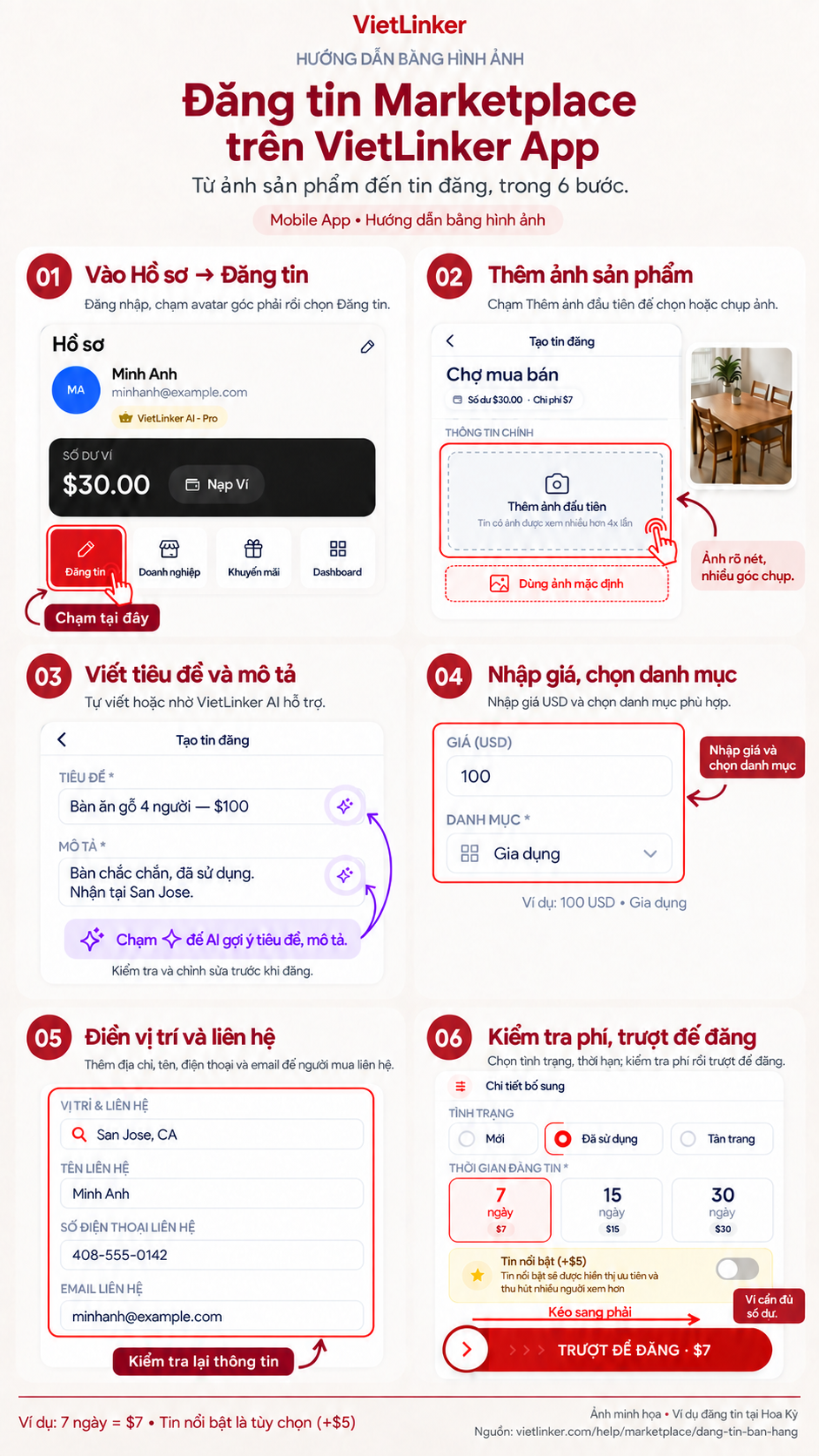
Step-by-step instructions
Open your profile and select Post
Sign in to the app, then tap your avatar in the upper-right corner to open your profile. Tap the red Post button to open the Marketplace listing form.
Add product photos
Tap Add first photo to choose a photo from your library or take one. Use clear, real photos; the first photo becomes the listing cover.
Write the title and description, or ask AI
Name the item and describe its condition, features, and collection arrangements. Tap the AI icon beside either field for suggestions, then review and edit the result.
Enter a price and choose a category
Enter your asking price and select the correct product category. The illustration uses a dining table priced at 100 USD. Check the currency for your selected market.
Add location and contact information
Enter the address and select the matching suggestion. Check the city, state and postal code; add a contact name, phone number and email so buyers can reach you.
Choose the options and slide to post
Scroll to Additional details and select the item condition, then choose a posting duration. Check the total fee and wallet balance, then drag the SLIDE TO POST control from left to right.
Check before posting
United States example: 7 days costs $7, 15 days costs $15, and 30 days costs $30. Featured placement is optional and adds $5. Check the total and your wallet balance before confirming; select featured placement only if you want it.
After submitting, track the listing status in your account. Listings are reviewed before appearing publicly. If an error appears, read the message and correct the information requested.
How to track, edit and delete posts
