


Manage your posts
Track, edit and delete posts in the VietLinker App
Manage your Marketplace, Jobs and Real Estate posts in one place. Follow the illustrated guide to check review status, update details or remove a post you no longer need.
Which platform are you using?
For the VietLinker mobile app. If you use a browser, choose Website above.
Visual walkthrough
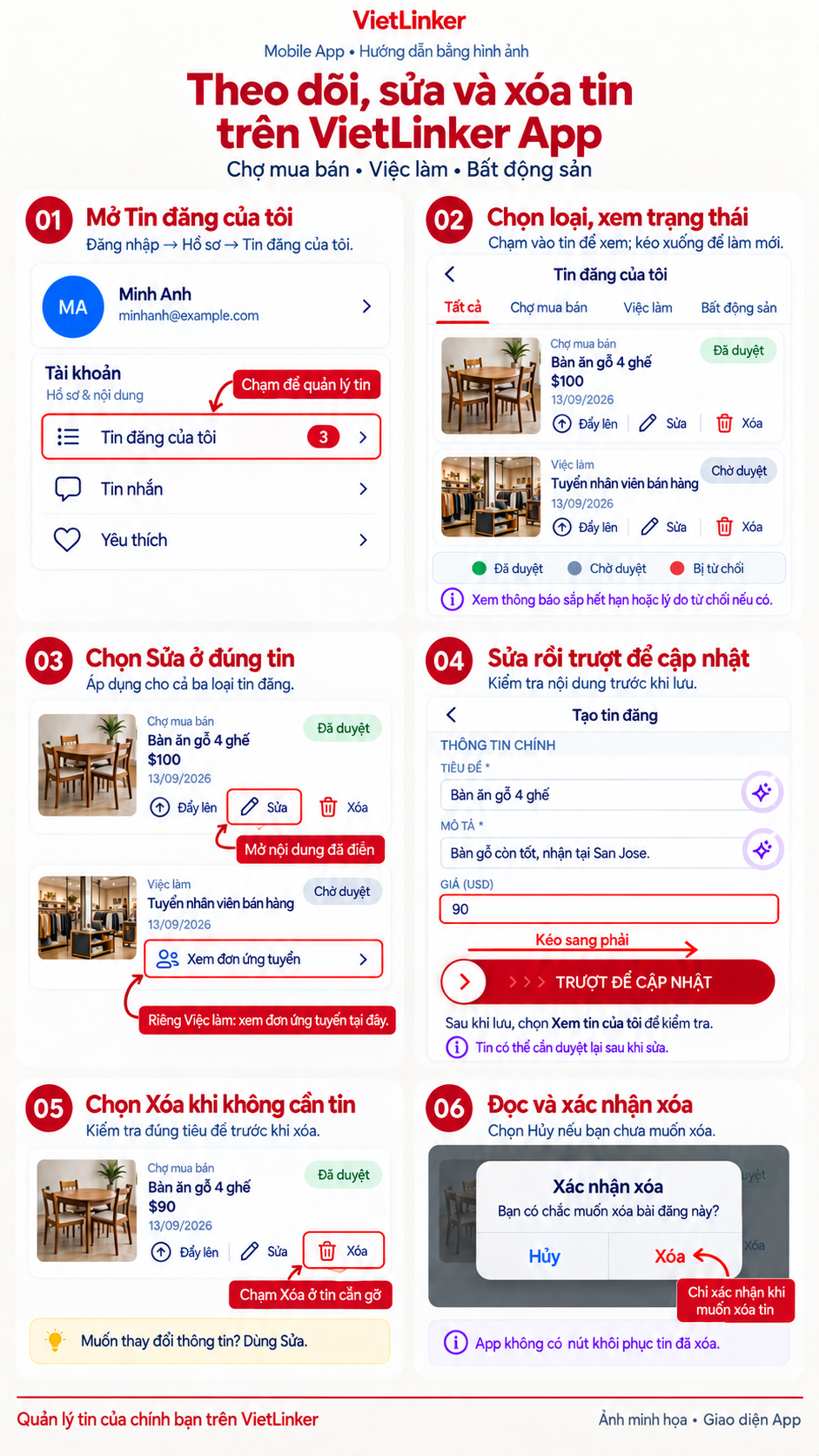
Step-by-step instructions
Track your posts
Open My posts
Sign in to the app, open your profile, find the Account section and select My posts (Tin đăng của tôi). Choose All, Marketplace, Jobs or Real Estate to find the post you want to manage.
Check status and expiration
Read the Approved, Pending review or Rejected badge on each post. Check any rejection reason or expiration notice. Tap a post to see its details and pull down to refresh the list. Job posts also provide an action to view applications.
Edit a post
Choose Edit and update the details
Tap Edit (Sửa) on the correct post card. The form opens with your existing content. Update its title, description, photos and relevant fields, such as an item price, job requirements or property details.
Slide to update, then check the result
Review your changes, scroll down and drag the update slider (Trượt để cập nhật) from left to right. When the app confirms that your post was updated, choose View my posts (Xem tin của tôi). Check the content and status again because changes may require another review.
Delete a post
Find the post to delete
Return to My posts, select a category and check the title and photo to avoid choosing the wrong post. Tap Delete (Xóa) at the bottom of its card. This opens a confirmation dialog.
Confirm Delete or choose Cancel
The deletion dialog (Xác nhận xóa) asks whether you are sure you want to delete the post. Choose Delete (Xóa) to confirm or Cancel (Hủy) to keep it. After a successful deletion, check the list; the deleted post will no longer appear.

